Clip views are the total number of times a clip has been played across Twitch, its embeds, and any platform where it's been shared. The single most effective thing you can do right now is feature your best clips as soon as your stream ends and share them immediately, since clip views peak within the first few days and drop off fast after that. Check the Clips Manager or Stream Summary for your top performers before you do anything else.
TL;DR:
- Most clip views peak within the first few days after creation, making immediate sharing and featuring crucial for maximizing reach.
- Read all three dashboards—Stream Summary, Clips Manager, and Discovery Analytics—to get a complete picture of your clip performance across platforms.
- Duplicate clips do not combine their views; Twitch surfaces only the highest-viewed version, so check for duplicates if view counts seem inconsistent.
- Organic growth through timely, community-driven clip promotion typically outperforms paid amplification unless urgent or time-sensitive promotion is needed.
- View counts are influenced by Twitch's filtering of bot traffic and may lag across dashboards, so always allow 48 to 72 hours for data to stabilize before troubleshooting.
Table of Contents
- Where to Find Your Clip View Counts
- How Does Twitch Count a Clip View?
- How Do You Configure Clip Settings and Featured Clips?
- Best Twitch Clip Strategies to Increase Views Fast
- Why Do My Clip Views Look Wrong or Inconsistent?
- Organic Growth vs. Paid Amplification: Which Actually Works?
- Scale Clip Visibility With Twitchpanel When Timing Matters
- Official Twitch Resources Referenced in This Guide
- Sources
Where to Find Your Clip View Counts
Twitch spreads clip data across three main dashboards, and each one tells a slightly different story. Learning to read all three saves you from making decisions based on incomplete numbers.
The Stream Summary page shows a "Top Clips From This Stream" panel right after you go offline, and it's where most streamers get their first read on what caught fire. It also handles exports directly to social platforms and flags that clip views typically peak in the first few days after a clip is created.
The Clips Manager, tucked inside your Creator Dashboard, lets you filter every clip you own by timeframe: last 24 hours, 7 days, 30 days, or all time. This is the tool for spotting patterns, like whether Tuesday clips consistently outperform Friday ones.
- Stream Summary: best for a quick post-stream snapshot and direct export
- Clips Manager: best for filtering by date range and sorting historical performance
- Discovery Analytics: shows on-demand metrics broken down by traffic source, useful for seeing whether views came from your channel page, the front page, or social embeds
Public clip URLs display view counts too, but the number there can lag behind what you see in your own dashboard. Twitch's API exposes some clip metadata, but developer forum threads confirm certain live-view metrics simply aren't exposed through the API at all, so third-party trackers built on the API will never fully match what you see natively.
How Does Twitch Count a Clip View?
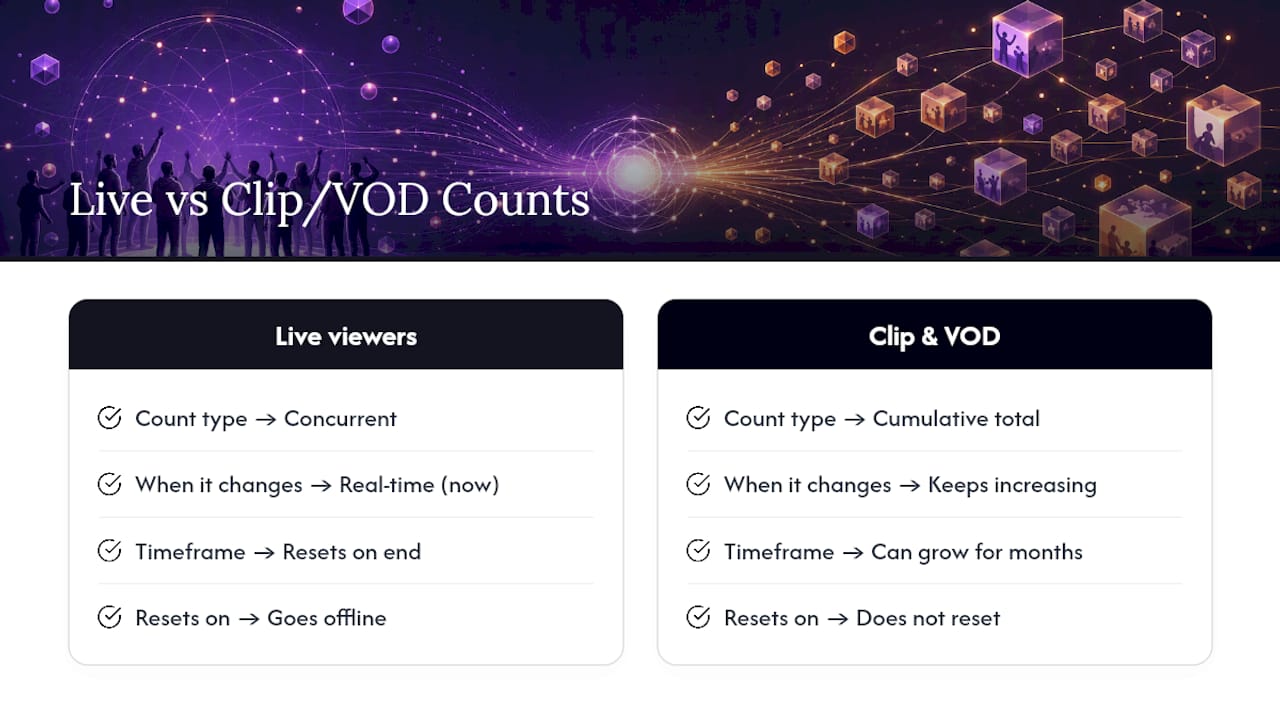
A clip view counts as a play, whether that happens on your channel page, embedded in a tweet, or surfaced through Discovery. It's a cumulative total, not a live snapshot.
That distinction trips up a lot of streamers coming from the live-viewer side of Twitch. A live viewer count is concurrent. It tells you how many people are watching right now, and it resets the moment you go offline. A clip or VOD view count is accumulated. It keeps climbing for as long as people find and watch that piece of content, sometimes for months.
Twitch also overhauled how it tracks these numbers. Reporting on the update describes five specific fixes aimed at cleaning up the count: correcting inflation bugs, folding Stories views into the totals, tightening cross-platform consistency, and specifically filtering out bot traffic that had been artificially padding numbers for years.
One quirk worth knowing: if you or a viewer accidentally creates two clips of the same moment, Twitch doesn't average them or add them together. It surfaces whichever duplicate has the higher view count and effectively buries the other. If a clip you remember being popular suddenly looks quiet, check whether a duplicate absorbed its views.
How Do You Configure Clip Settings and Featured Clips?
Your Clips Settings control who can make clips from your channel and where those clips can travel afterward. Get this wrong and you either choke off your own growth or lose control of your content.
- Open your Creator Dashboard, go to Settings → Stream, and confirm Enable Clips is turned on. Without it, viewers can't create clips at all.
- Decide whether to allow viewer exports to TikTok and YouTube. Twitch's own Clips Settings documentation explains that toggling this on lets fans repost your highlights, which extends your reach beyond Twitch's walls.
- Review your Featured Clips selection after every single stream, not once a week. Twitch's discovery surfaces prioritize recent and engaging Featured Clips, so a clip that sits unfeatured for three days has already missed its best window.
- If you want tighter control, use the setting that limits discoverability to featured clips only. This works well for streamers dealing with clip drama or out-of-context moments who'd rather curate than let anything surface freely.
Pro Tip: Set a short timer at the end of every stream specifically to review and feature your top clips. It's a small habit that compounds fast, since discovery algorithms clearly favor freshness.
Best Twitch Clip Strategies to Increase Views Fast
Getting more clip views isn't about luck. It's about designing moments people want to clip and then getting out of the way of the sharing process.
Design your stream to invite clips. Recurring bits, a visual cue when something ridiculous happens, and stream titles that include searchable keywords (the game name, a guest's name, "world record attempt") all make clips easier to find and easier to justify creating.
Build a clip workflow into your community, not just your content. A few approaches that consistently work:
- A bot command like
!clipthat walks new viewers through how to make one - A "Clip of the Day" channel-points redemption, where the winning clip has to be submitted through Discord or a form
- Featuring viewer-made clips live on stream, which doubles as social proof and encourages more submissions
- Closing every stream with a 5 to 10 minute clip recap segment, watching the best moments together with chat
Cross-post with intent, not just speed. Export clips within hours, not days, since the peak viewing window closes fast. When you post to TikTok or YouTube Shorts, write a title and description that actually describes the moment (not just "clip lol"), and attach 3 to 5 targeted hashtags that combine your name, the game, and a relevant trend tag. Twitch's Social Media Badges program rewards viewers who share your content this way, and it polls view counts from those platforms roughly every two days to update badge progress.
Use paid amplification carefully, if at all. If organic momentum stalls, a short and transparent test (a few clips, a measured budget, clear before/after tracking of discovery versus retention) tells you more than guessing. The goal is always to feed the organic flywheel, not replace it.
Pro Tip: Track which traffic source (channel page, front page, or social embed) drives the most Discovery Analytics volume for your top three clips, then double down on whichever one is working instead of splitting effort evenly.
Why Do My Clip Views Look Wrong or Inconsistent?
When a clip's view count looks stuck, inflated, or just off, work through these checks before assuming something is broken:
- Compare all three surfaces first: Stream Summary, Discovery Analytics, and the clip's own public URL frequently show numbers at slightly different points in the update cycle.
- Rule out duplication: Twitch surfaces only the higher-viewed version of a duplicate clip, so the "missing" views might be sitting on a copy you forgot about.
- Consider bot-filtering updates: a count that suddenly drops could reflect Twitch removing previously inflated bot traffic rather than a bug on your end.
- Give it time: community troubleshooting threads document real cases of API and dashboard lag, and some aggregations simply need 48 to 72 hours to stabilize.
- Escalate if it persists: if a count still looks wrong after a few days, that's the point to contact Twitch support directly or check developer forum threads for known bugs.
Organic Growth vs. Paid Amplification: Which Actually Works?
The organic flywheel wins for most streamers, most of the time. Stream design that invites clips, a community that knows how and why to make them, and a habit of featuring your best content fast will outperform ad-hoc clipping over months, not days. That's not a hedge. It's the pattern every serious creator eventually converges on because it compounds instead of resetting.
Where paid amplification earns a place is in the gaps organic growth can't fill on its own: a launch moment that needs a push before the algorithm has learned your channel, or a highlight so time-sensitive that waiting for slow organic discovery defeats the purpose. Treat it the way you'd treat any paid channel test: small budget, clear metric (discovery traffic versus retention, not just raw view count), and a defined stop point. Anyone selling paid views as a replacement for a real content and community workflow is selling you the wrong tool for the job. Used as a supplement, timed around a launch or a big moment, it can close a gap organic tactics take longer to fill.
— Backwards
Scale Clip Visibility With Twitchpanel When Timing Matters
Sometimes the organic flywheel needs a running start, especially around a launch, a partnership announcement, or a highlight that will lose relevance if it sits at zero views for its first critical days. Twitchpanel offers various growth services for Twitch, Instagram, and TikTok creators, including live viewers, clip and VOD views, Prime subscriptions, and chatbots, delivered through direct API integration.
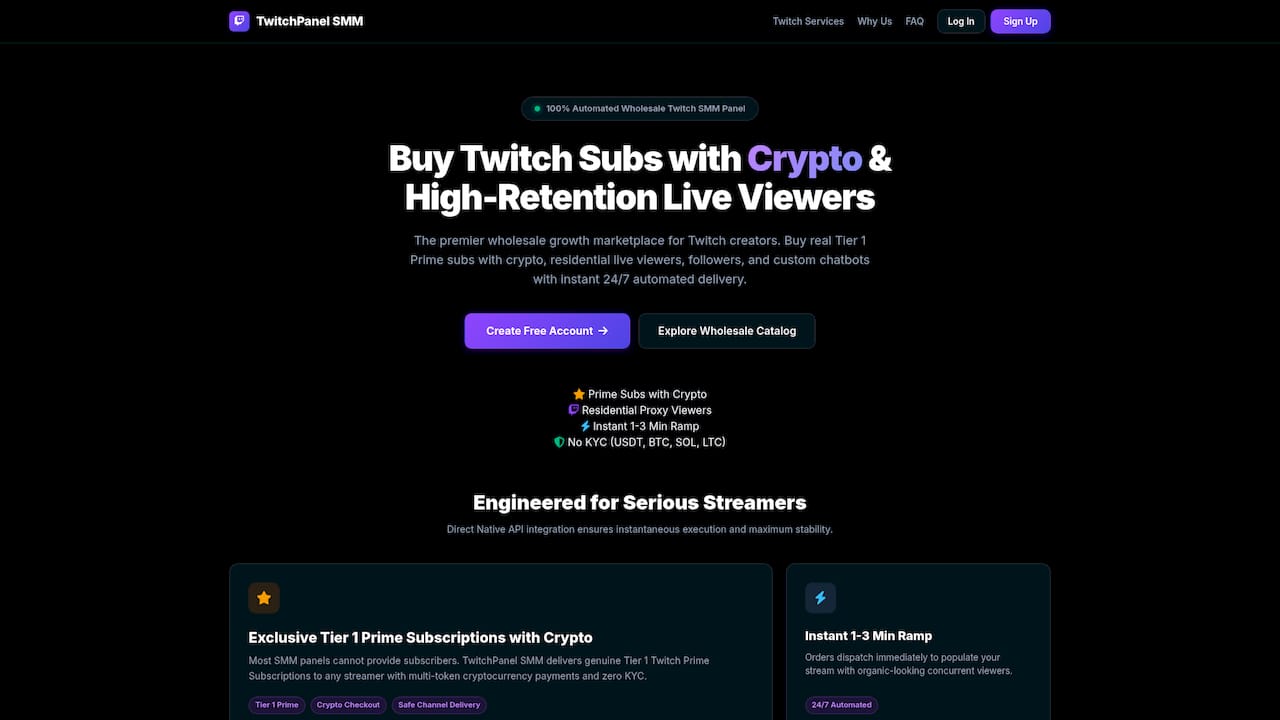
That native integration means setup happens quickly, with rapid viewer ramp-ups and no KYC paperwork slowing things down. Payment runs through cryptocurrency, and the service operates around the clock. If your organic tactics are solid but growth has plateaued, or you're testing how a scaling experiment affects Discovery Analytics before your next big stream, check out Twitchpanel's current services and run a measured test against your own baseline numbers.
Official Twitch Resources Referenced in This Guide
For the platform's own word on the settings and features covered here, start with Twitch's documentation on Featured Clips, the Stream Summary dashboard, and Clip Settings. For the technical side of how view counts differ between live streams and recorded content, the Twitch Dev Forum thread on stream versus video views is worth bookmarking, along with the reporting on Twitch's bot-filtering changes that reshaped how counts get calculated in 2026.